1) Emailing alex@evplay.net is the best and fastest way to get your issues resolved.
2) I have been pretty transparent that at the end of the day, this is largely considered a "workaround." I think it works really, really well, but as I have mentioned before, this is not an OEM integration.
3) I stand by this product and proud of where this project is given the obstacles thrown at us by you-know-who. I don't like being told "no" and I'm a big champion of at least having a choice. It's your vehicle after all, and you paid good money for it. With that said, if for any reason this isn't what you expected, send the product back for a full refund, less the $10 ($15 for Canada) it cost to ship you the device.
Finally, thank you again for all your patience and your support of this project. Reach out with any questions, comments, or just to say "hello!" Ok, let's get started...
Important: Before clicking the invite button, make sure the Google account you are logged in to on your phone or computer matches the account you are logged in to on your vehicle's screen.
This email should also match the one listed under "Google Account" in your EV Play account (if it differs from your EV Play account email).
Note, that changing the Google account email we have on file is a manual process, and so if you change it, please email me and let me know.Make sure you are logged in to the SAME Google account that you used in Step 1, above.
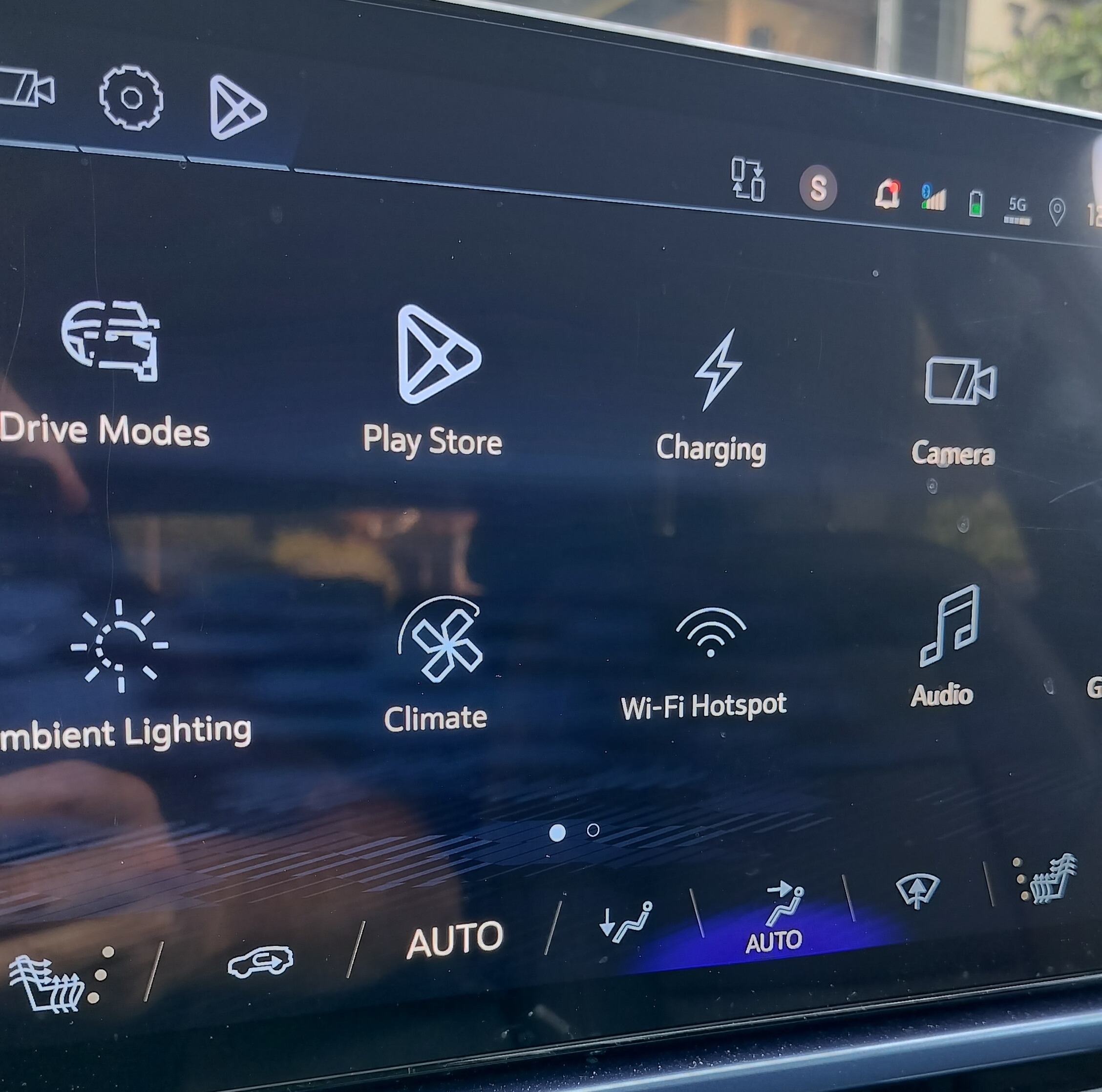
(Note that your assigned app name may differ from the picture below)
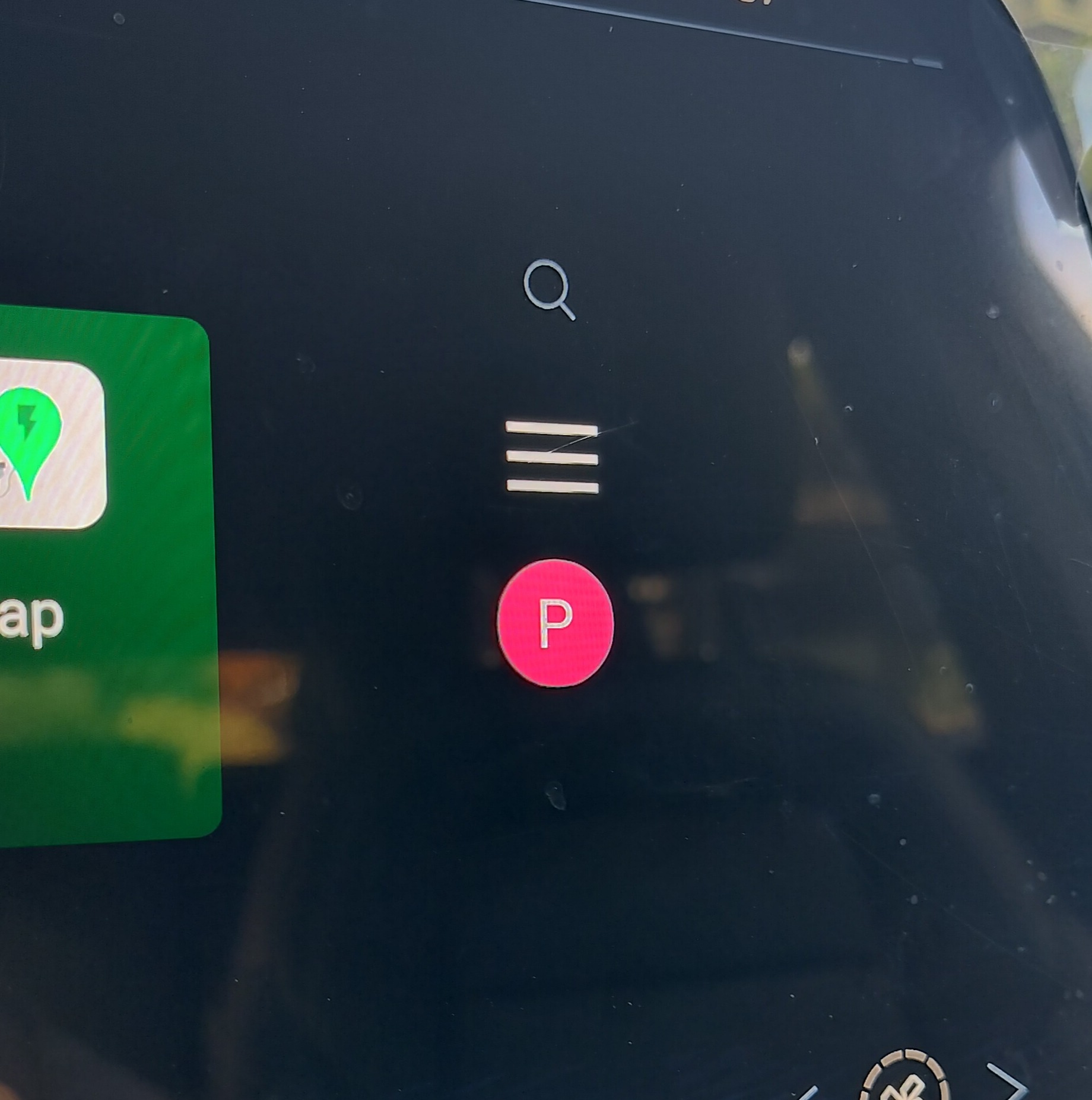
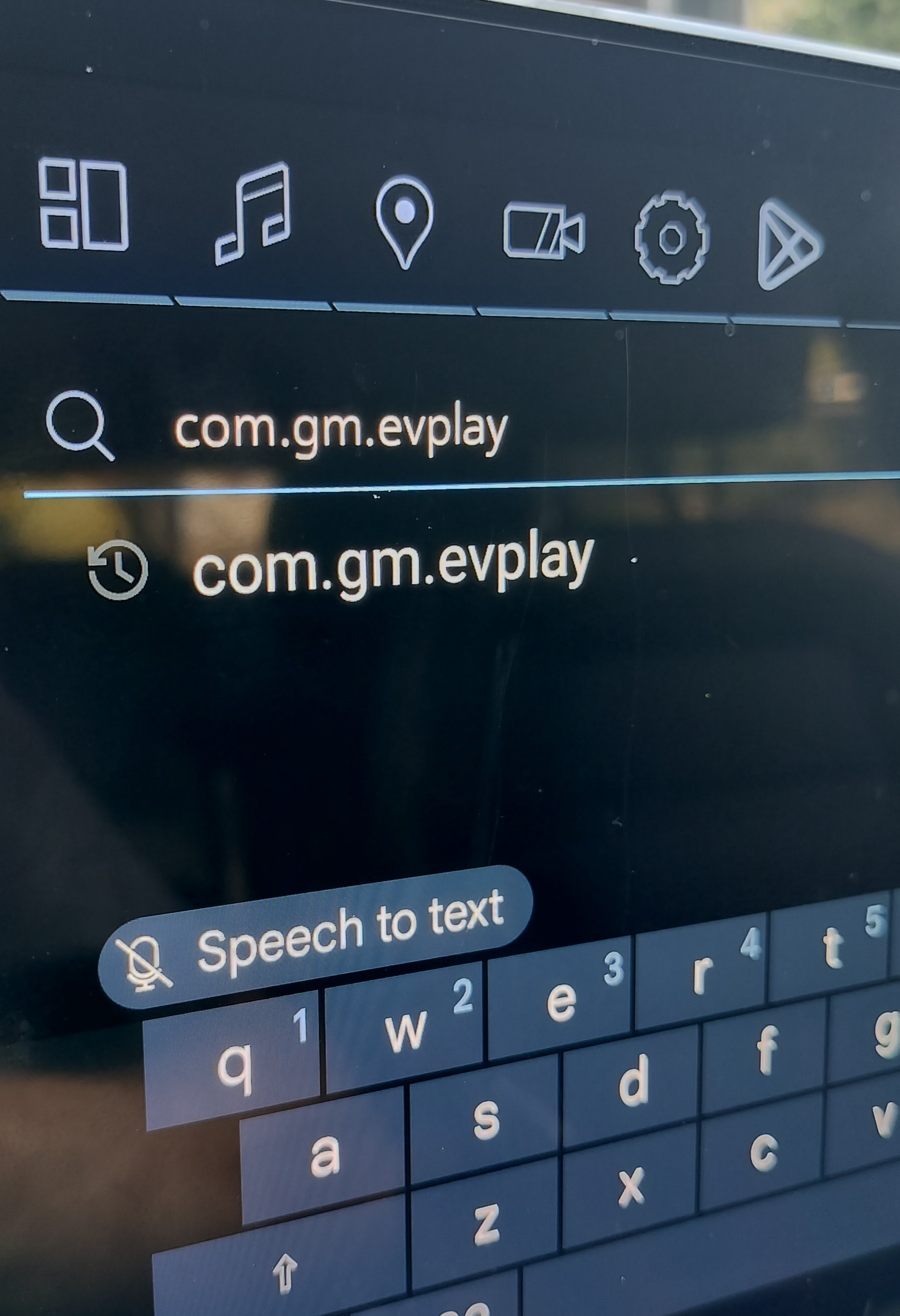
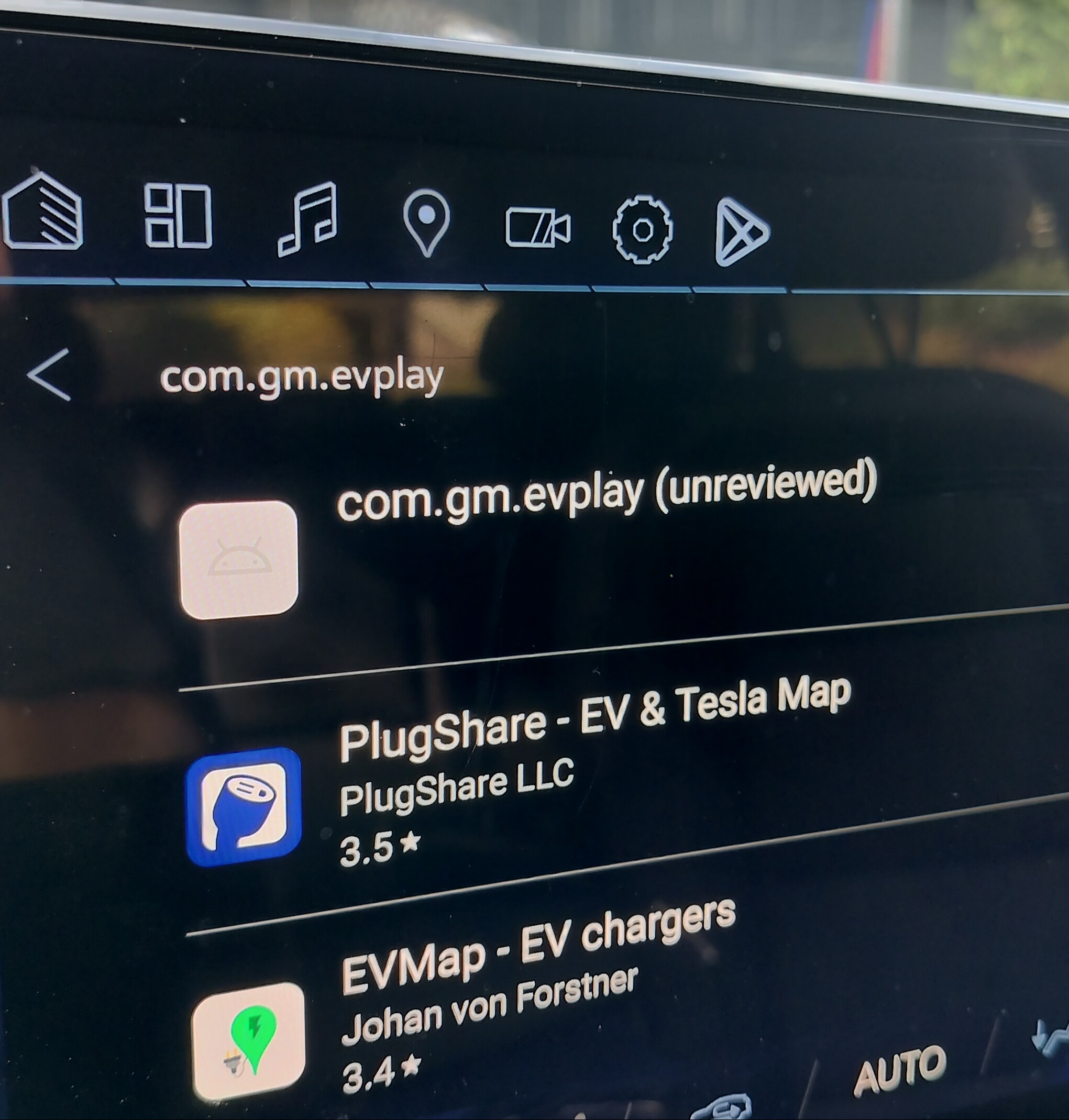
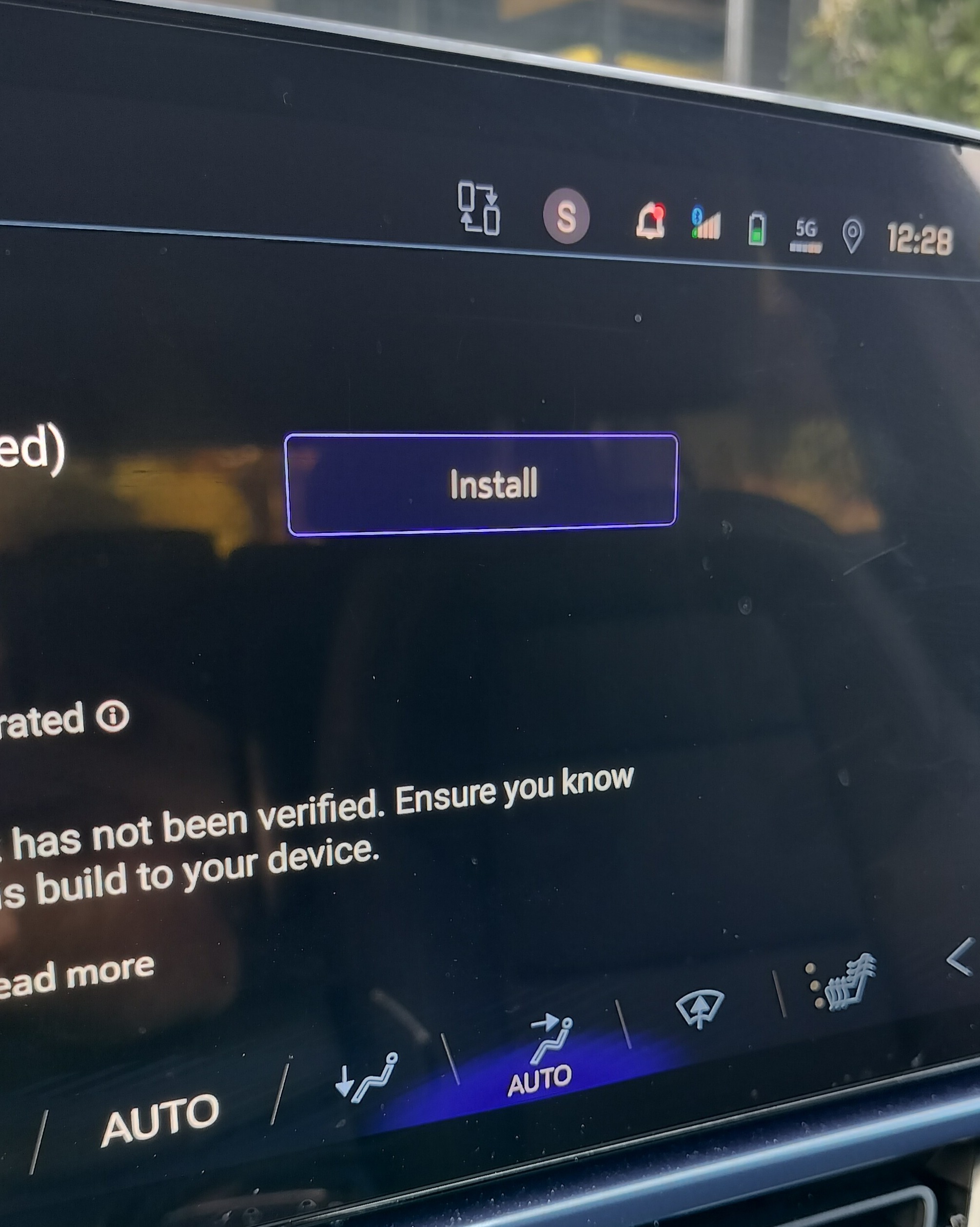
The app should appear in the list. Click on it and install it.
Click "OK" to any warnings - it's safe!
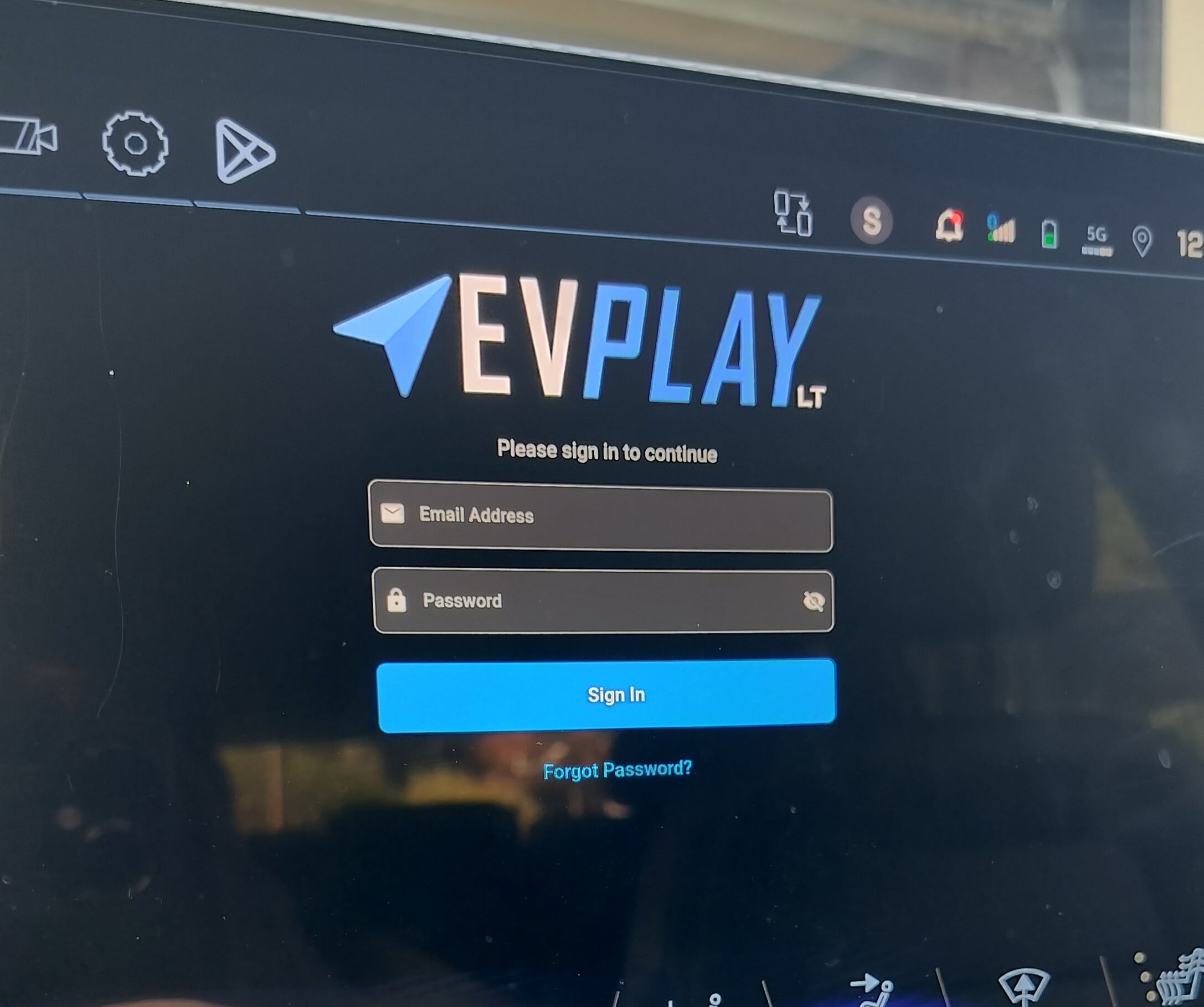
Log in to the app using your EV Play account information. If you will be using Android Auto, click on the orange Settings button and select Android Auto (CarPlay is selected by default so no change needed). For Android Auto, you may also set options like DPI and Display Mode to suit your personal preference.
Once you have logged in and get to the main screen, NOW you can plug in your EV Play device. Note that depending on your vehicle, you need to choose the data USB port, as some ports are "charge only." If you plug in the device and you don't see the dialog box below appear, try a different port.
If you have plugged the device into the correct port, your vehicle will briefly show a "USB DEVICE NOT SUPPORTED" message, then prompt you with a dialog box that says "Allow EV Play to Access EV PLAY-LT." Click OK. If it prompts you again, just click OK again (unfortunately, that checkbox doesn't remember the setting - thanks GM!). If you see the "USB DEVICE NOT SUPPORTED" message show over and over again repeatedly, please reach out to support.
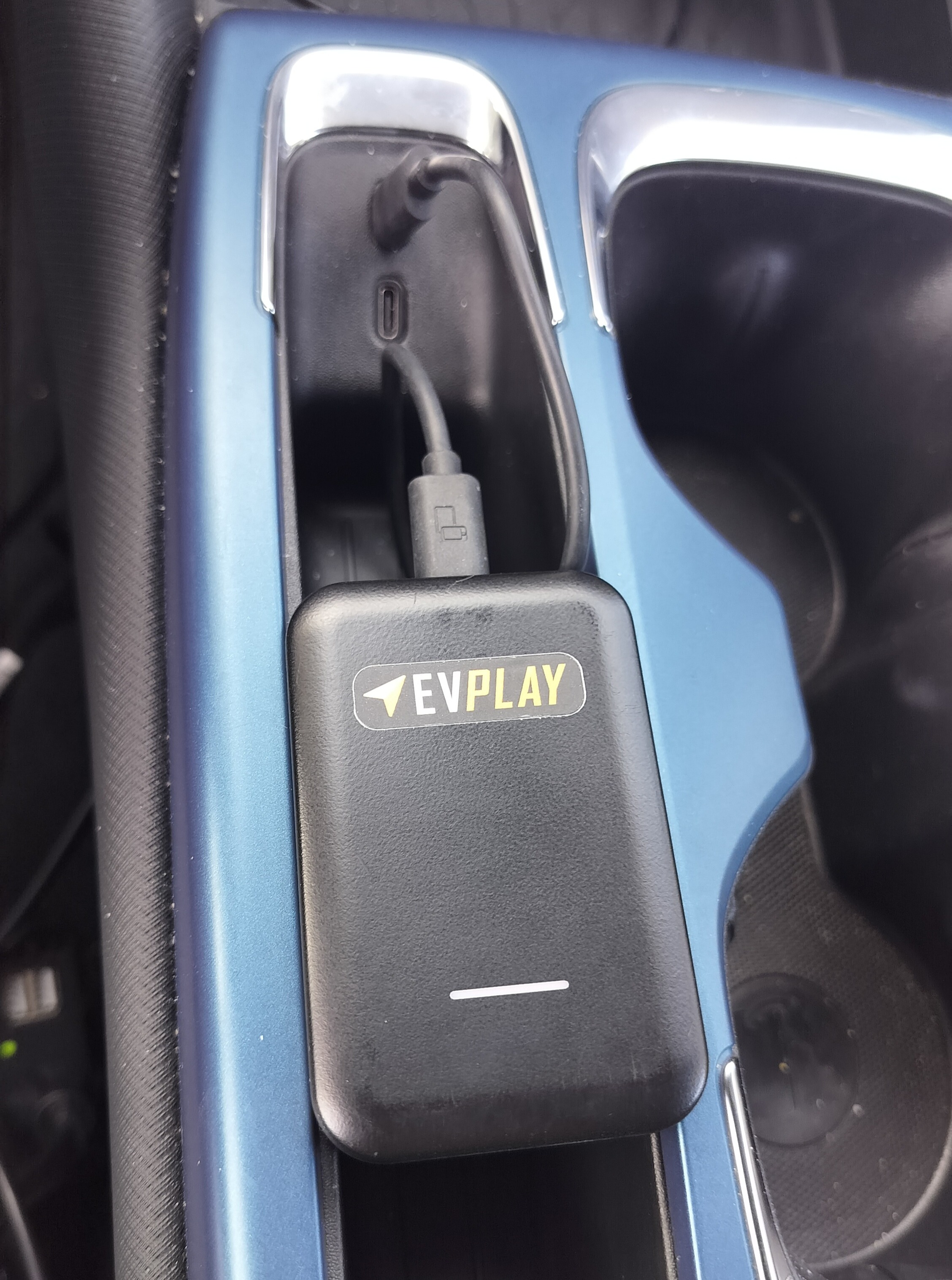
Make sure your phone's personal hotspot is turned OFF, and that Bluetooth and WiFi are turned ON. CarPlay users: Make sure "Bluetooth" is the selected audio source on your vehicle. If you are an Android Auto user, make sure to unpair/delete your Bluetooth pairing with your vehicle. Also note that if your infotainment system is running Android 12, two EV Play icons may appear when you install the EV Play app. One is the app itself, and the other is an audio source app which is required for audio to work. If after launching Android Auto you don't hear any audio playing over your speakers, make sure that "EV Play" is the selected audio souce in your vehicle.
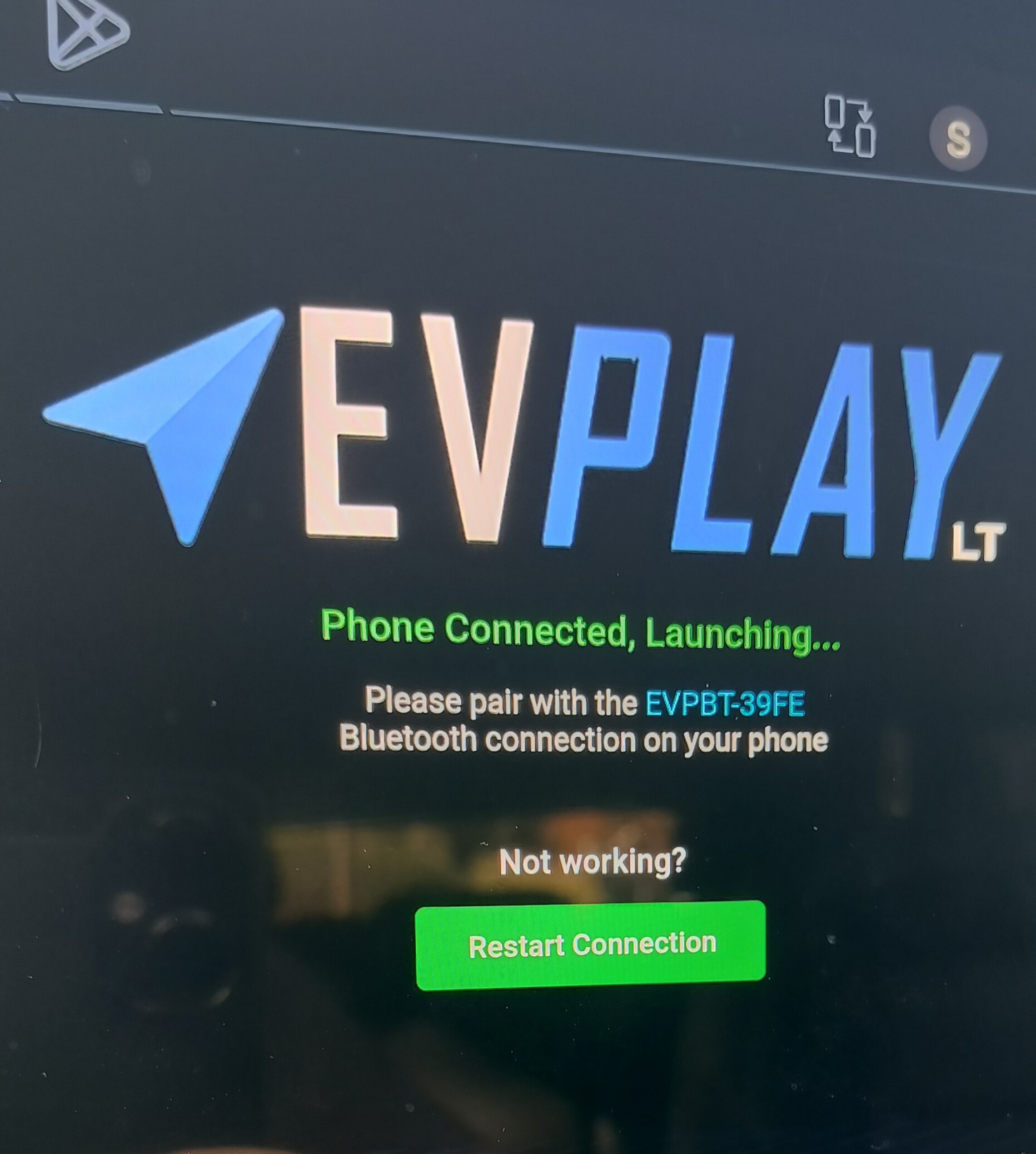
Your screen will show you the name of the Bluetooth signal you need to pair your phone with.
Pair your phone with that Bluetooth signal, at which point the screen should show "Phone Connected, Launching..."
Right after that, you should see CarPlay or Android Auto! 🎉
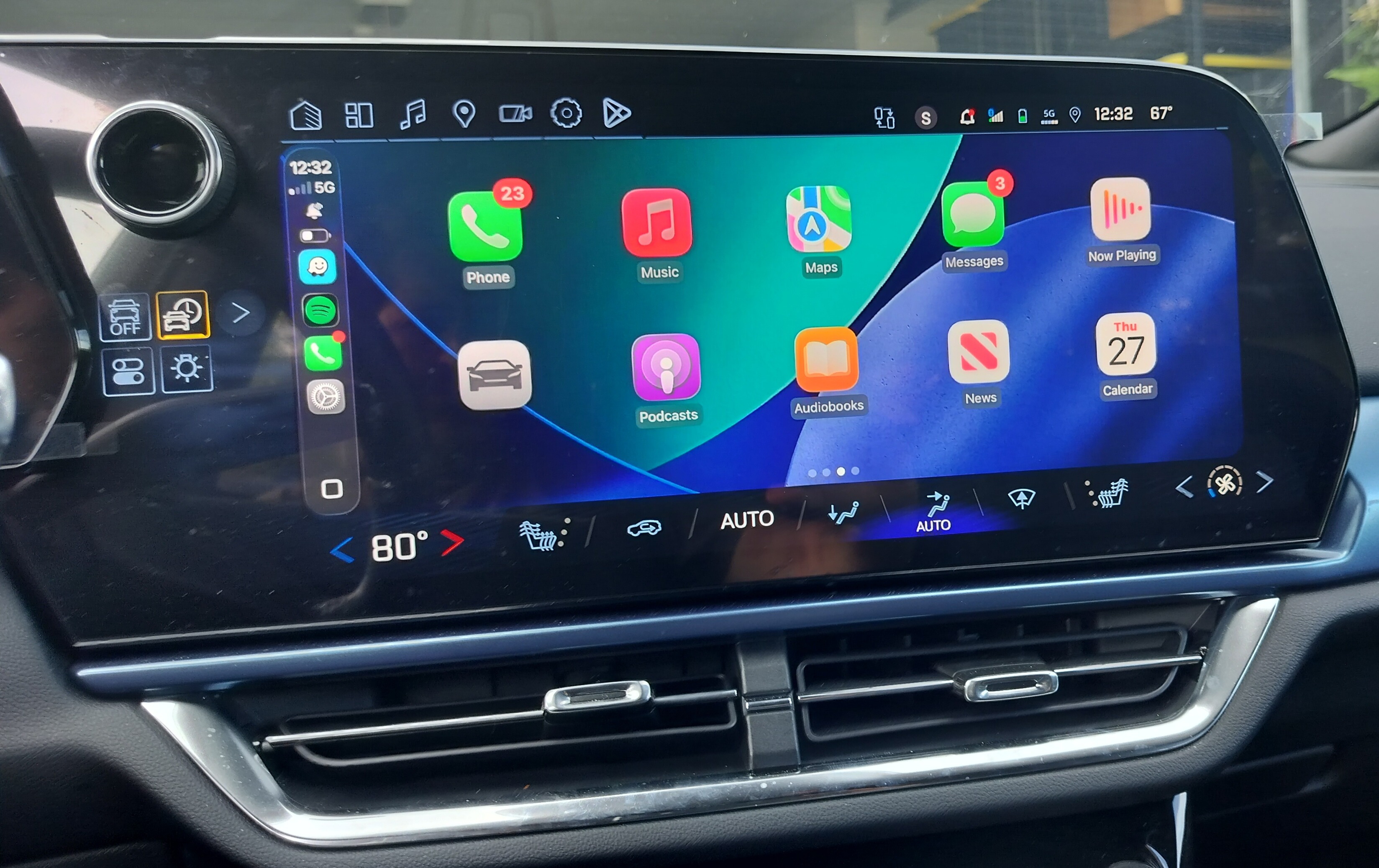
1) Don't forget to check your phone for any CarPlay or Android Auto prompts the first time you connect. Also, ensure CarPlay or Android Auto isn't disabled (there was that security scare a while back and a lot of folks disabled it!).
2) For CarPlay audio, your phone should be paired to your vehicle via Bluetooth and selected as the audio source, as it normally is. For Android Auto, you should set EV Play as the source.
3) If your phone has trouble connecting and/or disconnecte frequently, try restarting your phone. Also try turning your phone's hotspot off.
4) Steering wheel buttons do work on CarPlay and are still a little hit or miss on Android Auto. These include track forward/reverse, volume up/down, pause/resume music (hangup button), and long-press the voice button to summon Siri.
5) You may find a better experience using a wired connection vs. using a wireless connection. To set this up, first unpair the EV Play LT's Bluetooth and WiFi connections from your phone, unplug the EV Play LT device from your vehicle, plug your phone in to the USB port on EV Play LT, then plug the EV Play LT device back in to your vehicle. Then click Restart Connection in the app.
2) When you start your drive, CarPlay/Android Auto may disconnect once or twice. As you drive, things settle and it should remain connected for the remainder of your drive. We are working on reliability improvements in the next update. If things get "stuck" (you see CarPlay but touch doesn't work), you can restart the connection by tapping 5 times quickly on the bottom right corner (Sierras only) or top left corner (all other vehicles). This will re-launch the app and attempt to re-establish the connection.